Translations:Getting started/39/en
From ArdorDocs
- Download the Mac installer for the latest official Ardor Client 2.6.2 from https://www.jelurida.com/ardor-installer.dmg. After downloading, verify its signature. After downloading, check the SHA256 hash of the package for security.
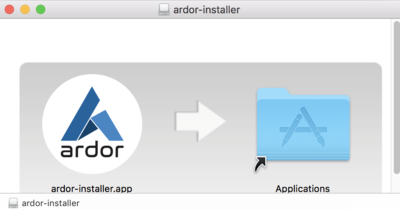
- Run the installer package (Ardor's Mac installer comes packaged in .dmg format) and follow the instructions on screen
- Click on the ardor-installer.app
- A security warning appears, click on the icon "?" highlighted in green
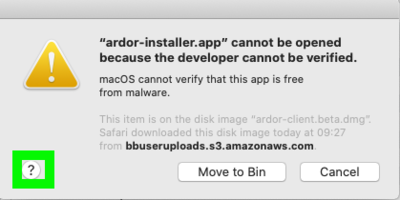
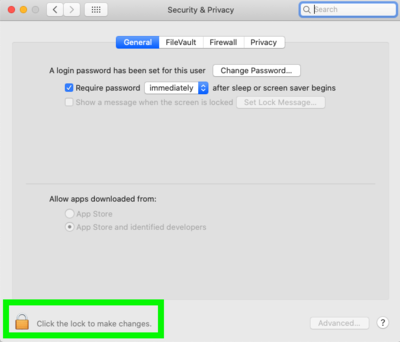
- Click on the "Open the General pane for me" in the pop-up that appears

- Click on the lock highlighted in green to make changes
- The option "Open anyway" is now available. Click on this button (note: if it does not appear please close temporary the Ardor installation windows)
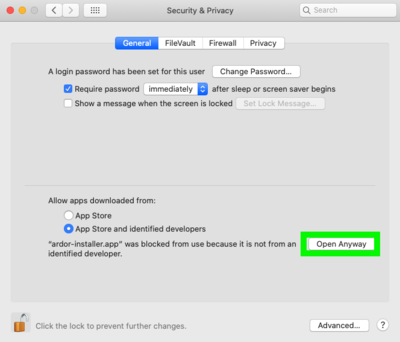
- Now open the ardor-installer.app and click on the "Open" button
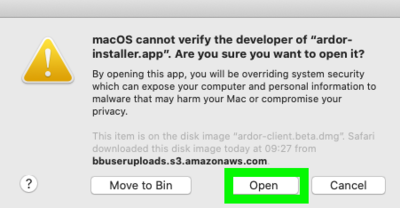
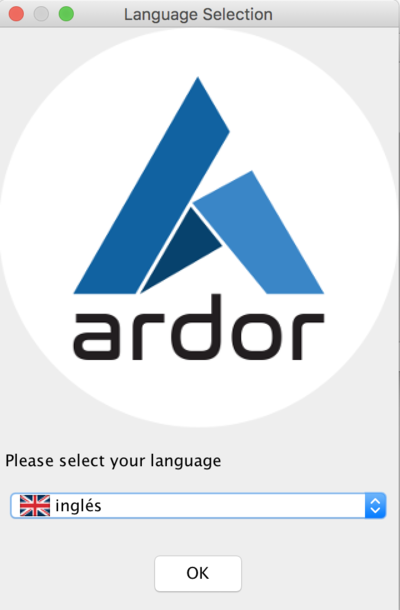
- Select the language
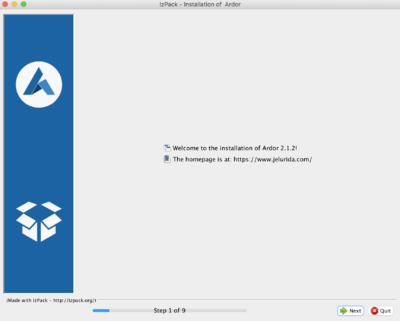
- Click on 'Next' to begin with the installation
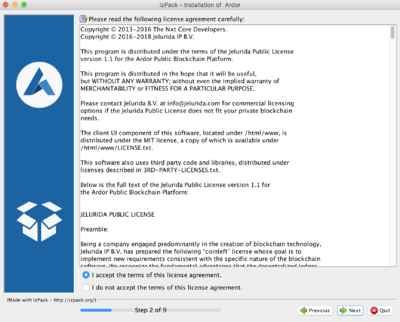
- Accept the terms of the license agreement
- Select the installation path
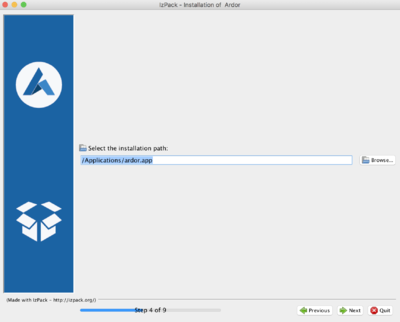
- Select the packages you want to install
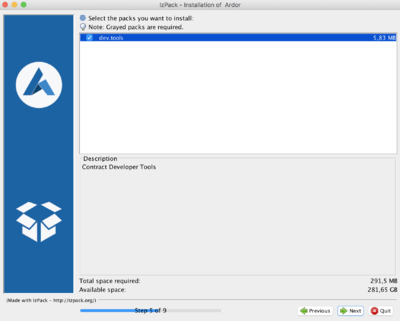
- Check the options See the tutorial for setting up the Ardor testnet
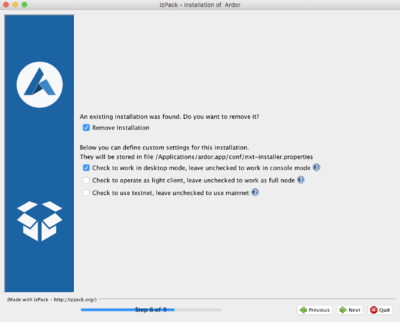
- Once installed, click on finish
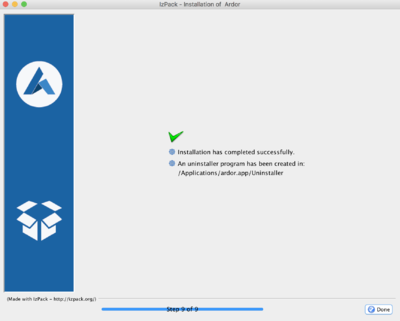
- Click on the ardor-installer.app
- You can now run the Ardor software clicking on the "ardor.app" in Applications. If you already have created a Ardor account, click in 'Returning User' to introduce your passphrase. If you need to create your Ardor account, click here for instructions to Create a New Ardor Account.


</accordion>